Geofence Filtering
Additional filtering can be applied to the map by making use of the various geofence drawing options on the left side of the map.
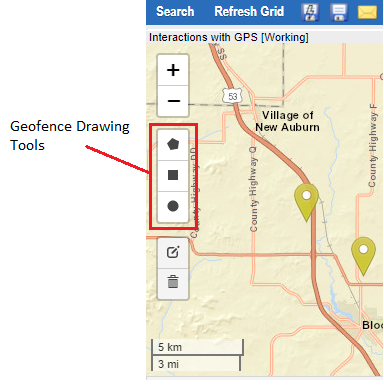
 Draw a Polygon – Places points on the map that will automatically fill to create a polygon geofence on the map. Begin by clicking on the map to place a point. Place as many points as needed. You can cancel or delete a point last added via the submenu options for the tool on the left. When finished, click on the first point again or click “Finish” to complete the shape.
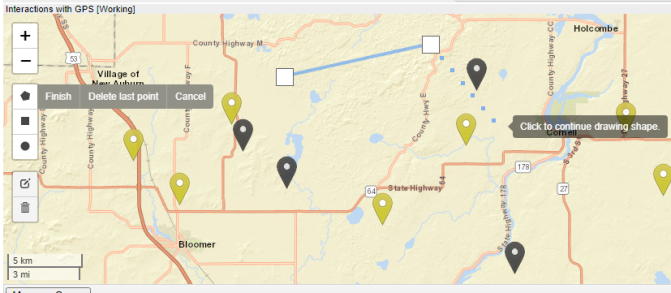
Drawing a Polygon
 Draw a Rectangle – For drawing a simple rectangle on the map. Click on the map and drag to scale the rectangle.
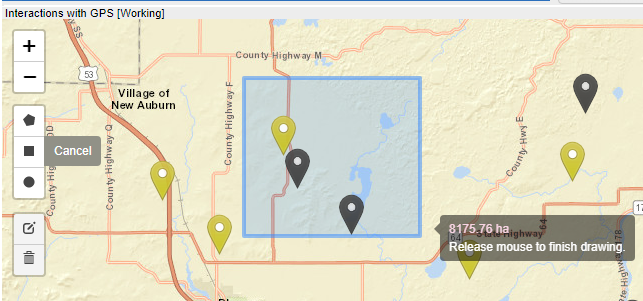
Drawing a Rectangle
 Draw a Circle – For drawing a circular area on the map. Click on the map and drag to scale the circle.
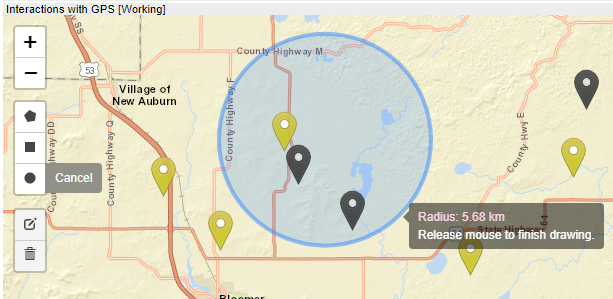
Drawing a Circle
After drawing your geofence filter, click Refresh Grid to apply the filter.
The geofence will become darkened, and the filter will be applied.
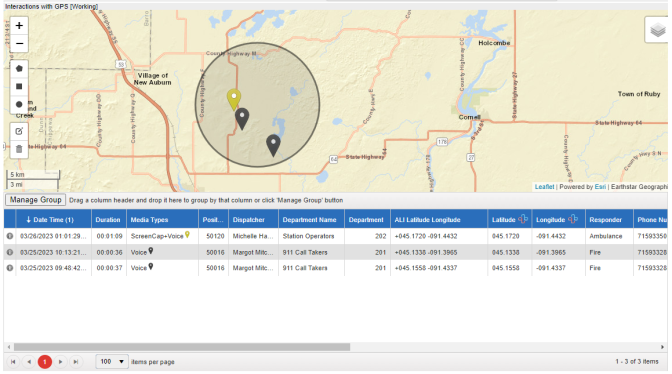
Interactions filtered by Geofence
These additional filters allow you to focus on specific areas on the map for interactions.
Interactions located outside of these geofence filters will not show up on the map or in the interactions grid.
Geofence filters can be edited or deleted by using the following controls on the map:
 Edit Layers – This button allows for editing geofences on the map. When clicked on, each geofence will turn pink and their points will be exposed. These points can be clicked on to modify the geofence to be larger or smaller.
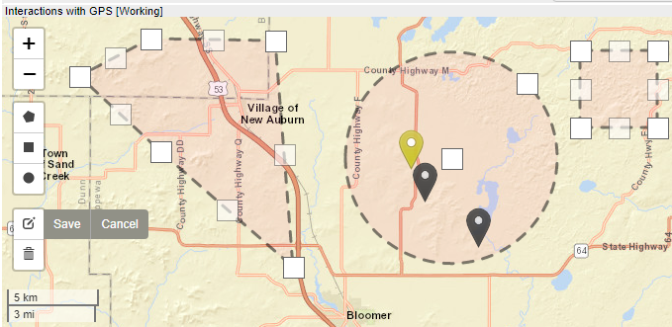
Editing Geofence Filters
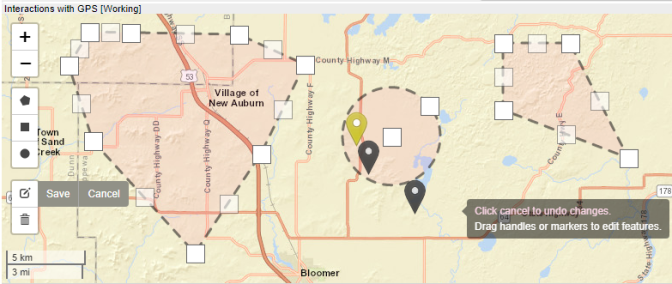
Modified Geofence Filters
When you are ready to save, click on the Save submenu option on the left.
If you want to cancel any changes, click the Cancel submenu option on the left, which will undo any changes made to the geofences and exit the Edit Layers mode.
 Delete Layers - Clicking on this button will allow you to delete geofence filters from the map.

Deleting a Geofence Filter
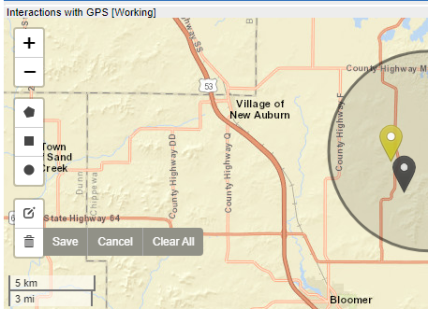
Geofence Filter Deleted
When you have finished deleting the geofence layers, click on the Save submenu option on the left to save your changes.
You can also click Cancel to discard your changes and exit the Delete Layers mode.
Pressing Clear All will remove all geofence layers from the map.
Note: There is no cancel button after clearing all geofence layers this way. Once clear all is pressed, the filters are removed.
All changes made to geofence filtering must be saved by saving the report to Common Reports or My Reports.
Note: If a report is not saved after geofence filtering edits have been made, those edits will be lost.
The colors and opacity of the Geofence layers on the map can be customized by an administrator.